
1. Understanding MinGW
Concept
- MinGW (Minimalist GNU for Windows) is a development environment designed for native Windows applications.
- It provides open-source tools that ensure compatibility with the Windows operating system.
Why MinGW on Windows?
- Compatibility: MinGW ensures your applications run seamlessly on Windows 11.
- Open-Source Advantage: Leverage freely available open-source tools.
- Streamlined Development: Focus on your code rather than system intricacies.
2. Download MinGW
- Visit the official MinGW website and download the latest version.
- Choose the installer that matches your system specifications.
3. Installation Wizard
3.1. Installing MinGW Installation Manager
- Run the downloaded installer (usually an
.exefile). - Follow the on-screen instructions.
Remarks:
At the moment I wrote this document, the installer which I downloaded is for installing “MinGW Installation Manager”. “MinGW Installation Manager” is an application which helps you to select packages of “MinGW” toolchain and to install them.
3.2. Installing MinGW packages
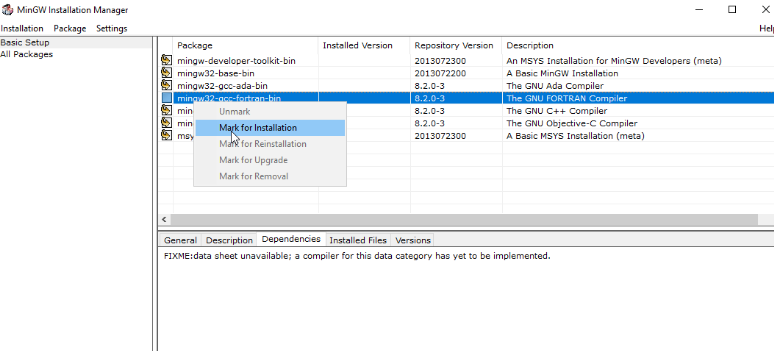
- Open
MinGW Installation Managerapplication. - Select “Basic Setup” > check all the basic packages here.
Remarks:
You can select the components you need for your development requirements now or later.
4. Configure Environment Variables
-
Open Windows
Advanced System SettingsIf you don't know how to open `Advanced System Settings`, use Google please. -
Click “Environment Variables” > At “User variable”, select “Path” and click “Edit”.
If "Path" doesn't exist yet, click New to create one. -
Add path of
MinGW bindirectory. This ensures that your system recognizes MinGW commands.

5. Verify Installation
-
Open your command prompt (E.g:
PowerShell) and type the following command:gcc --version -
If successful, you’ll receive information about the installed GCC version, confirming that MinGW is ready for use.
Pay attention that applications which have been run before you set Environment variable "path" won't update automatically. So, you must restart (terminate and run) any application which you intend to use with "MinGW" now. -
Now, you can use “gcc” command to compile C code and use “g++” command to compile C++ code. For example, the following commands are use to compile main.c and main.cpp to main.exe:
gcc -o main main.c
g++ -o main main.cpp
Happy coding! 🚀








 Coder Tiger
Leave a reply to Set Up Visual Studio Code As a C++ IDE – Coder Tiger Cancel reply