
Introduction
This guide will walk you through the process of establishing an SSH connection to your Ubuntu virtual machine running on VirtualBox within a Windows 11 environment. We’ll cover the necessary steps to configure port forwarding and initiate the SSH connection from your Windows host.
Steps:
- Install OpenSSH Server on Ubuntu
- Add a Port Forwarding Rule in VirtualBox
- Connect via SSH from Windows
1. Install OpenSSH Server on Ubuntu
- Start your Ubuntu virtual machine
- Open a terminal and input:
sudo apt update
sudo apt install openssh-server
- Check the service status to make sure the OpenSSH server is running:
sudo systemctl status ssh
- If the service is not running, you can start it with:
sudo systemctl start ssh
2. Add a Port Forwarding Rule in VirtualBox
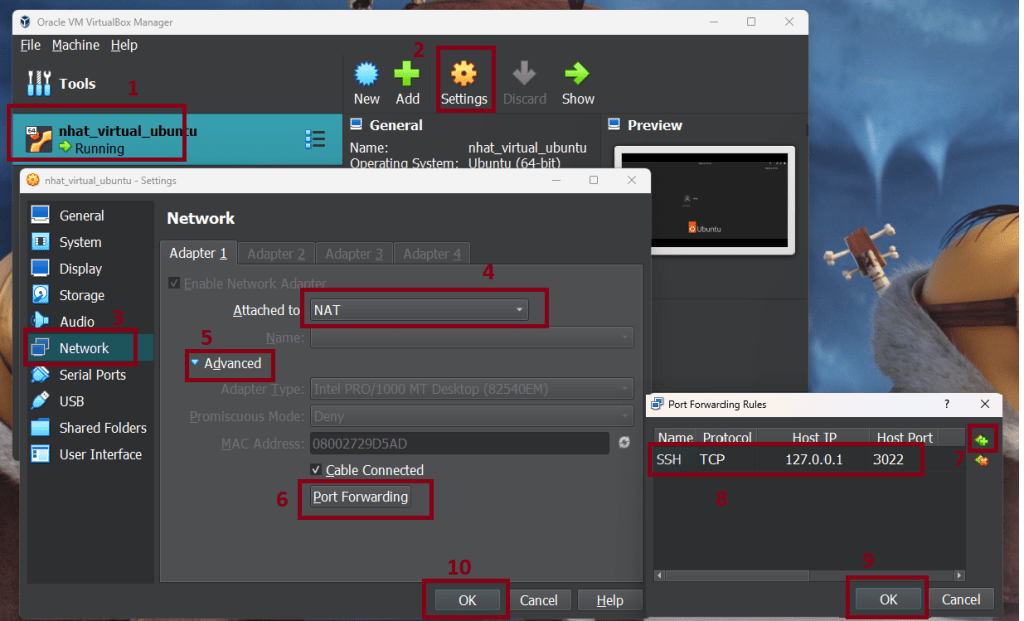
- In VirtualBox, select your Ubuntu virtual machine.
(1) - Go to Settings -> Network -> Adapter 1.
(2-3) - In the Attached to section, make sure NAT is selected.
(4) - Click on Port Forwarding.
(5-6) - Click the green plus icon to add a new rule.
(7) - In the new window
(8):- Name: Enter SSH
- Protocol: Select TCP
- Host IP: Leave blank or enter 127.0.0.1
- Host Port: Enter 3022 (or another port you prefer, as long as it’s not used by another application on your host machine)
- Guest IP: Leav blank or the Ubuntu IP.
- Guest Port: 22
3. Connect via SSH from Windows
3.1. Use PowerShell
- Open PowerShell or Command Prompt on Windows.
- Use the following command to connect (replace username with your Ubuntu username)
ssh -p 3022 username@127.0.0.1
- Input your password.
3.2. Use Visual Studio Code
3.2.1. Install Remote-SSH extension in Visual Studio Code
- Open Visual Studio Code.
- Click on the Extensions icon (four squares) in the left sidebar.
- Search for “Remote – SSH” and install the extension.

3.2.2. Configure the SSH connection
- Press Ctrl+Shift+P to open the Command Palette.
- Type “Remote-SSH: Add New SSH Host” and press Enter.
- Enter your SSH connection configuration, using the port forwarded in VirtualBox. (Replace username with your Ubuntu username and 3022 with the port you set up in VirtualBox.)
ssh -p 3022 username@127.0.0.1
- Choose a location to save the configuration file (usually .ssh/config in your user directory).
3.2.3. Connect to the virtual machine
- In the bottom left corner of Visual Studio Code, you’ll see a new icon (a computer with an arrow). Click on it.
- In the list of SSH hosts, select the host you just added.

- Enter your Ubuntu password when prompted.
3.2.4. Open a folder and start working
- After successfully connecting, Visual Studio Code will open a new window.

- Click “File” icon at the top-left -> click “Open Folder”.
- You’ll be prompted to select a folder on your Ubuntu virtual machine to open.
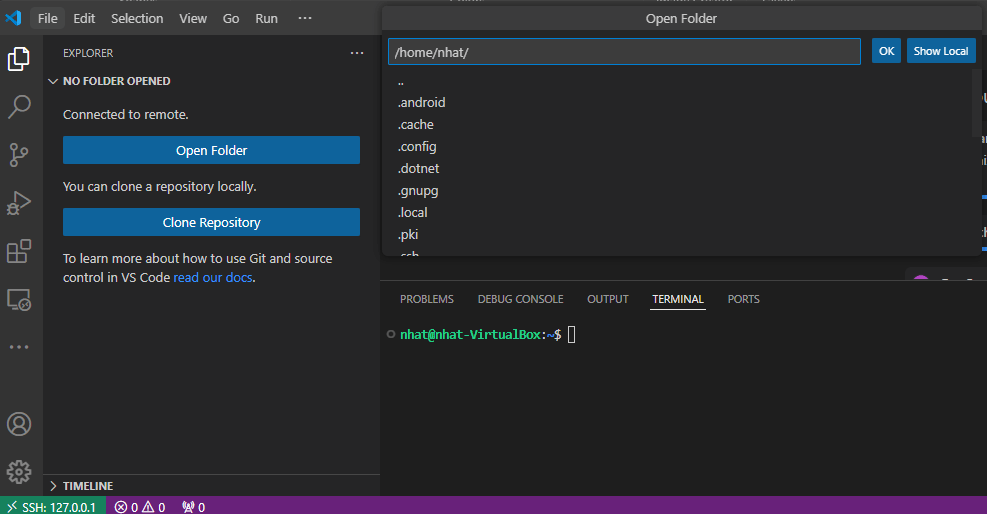
- Now you can edit files on your Ubuntu virtual machine directly from Visual Studio Code, use the integrated terminal to run commands, and more.







 Coder Tiger
Leave a reply to harfatehfuqua Cancel reply